Ansys
There are a lot of ways to install Ansys and unlike Solidworks it is not easy to fix unless you follow these instructions specifically. There are other instructions floating around that may install the software but may give you the student version or some version that is not compatible with Solidworks that will basically make Ansys unusable in any effective manner. Make sure to follow these links and steps or else we can't really help you.
The first thing to do is make an account with your school email on the support website, which will give you access to the use guides and link your account to the schools account.
Job title – student
Company – Solar Gators
Address - 1949 Stadium Rd
Zip code – 32611
Account Number: 1168827
Next go to this link for the download. This is large zip file, so make sure you have time and bandwidth to install it in one go or else you'll have to restart. You need to be signed in for this step
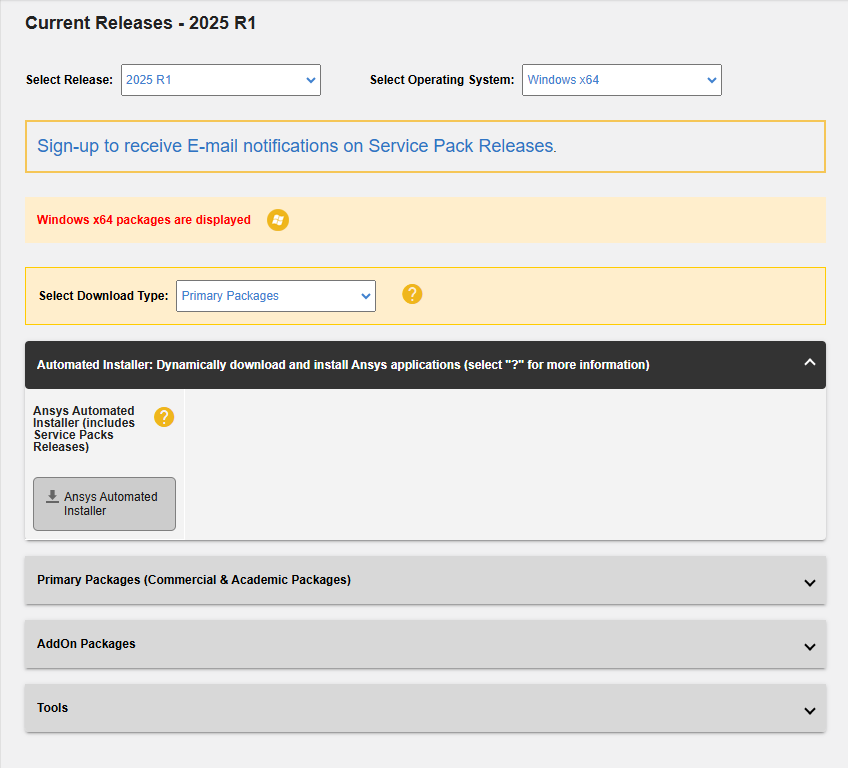
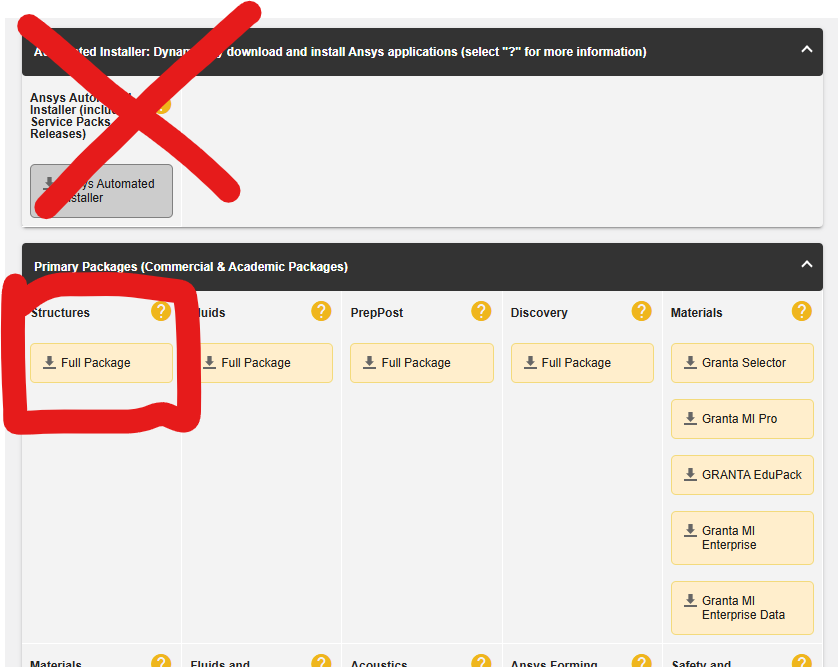
You will land on a page that looks like this. DO NOT DOWNLOAD THE AUTOMATED INSTALLER!!! Instead hit the Primary Packages dropdown and install the Structures package. (Note to future people, may also need to download PrepPost to get ACP working on newer installs, update this when we figure that out).
Unzip the files and run the setup.exe file. Don't lose the setup.exe file it will be important if you need to make any changes to your install later. However, your install will go to a different folder on your computer's program files, while the setup.exe will remain in the unzipped folder.
The default options are good to go for setup, but make sure you set up your CAD Interfaces, although this can be done at anytime through setup if you forget. You must enable the Solidworks one so that Solidworks parts can be directly linked into your Ansys simulations. If you don't set this up, you might as well not even bother using Ansys.
Finally, after completing the install, search your install directory (or just computer in general) for the Ansys Licensing Settings file and run it as an administrator. This will allow you to connect to the server at UF and run simulations.
Port: 1055
License Server Address: ansys.mae.licsvr.ece.ufl.edu
Hit test and then save.
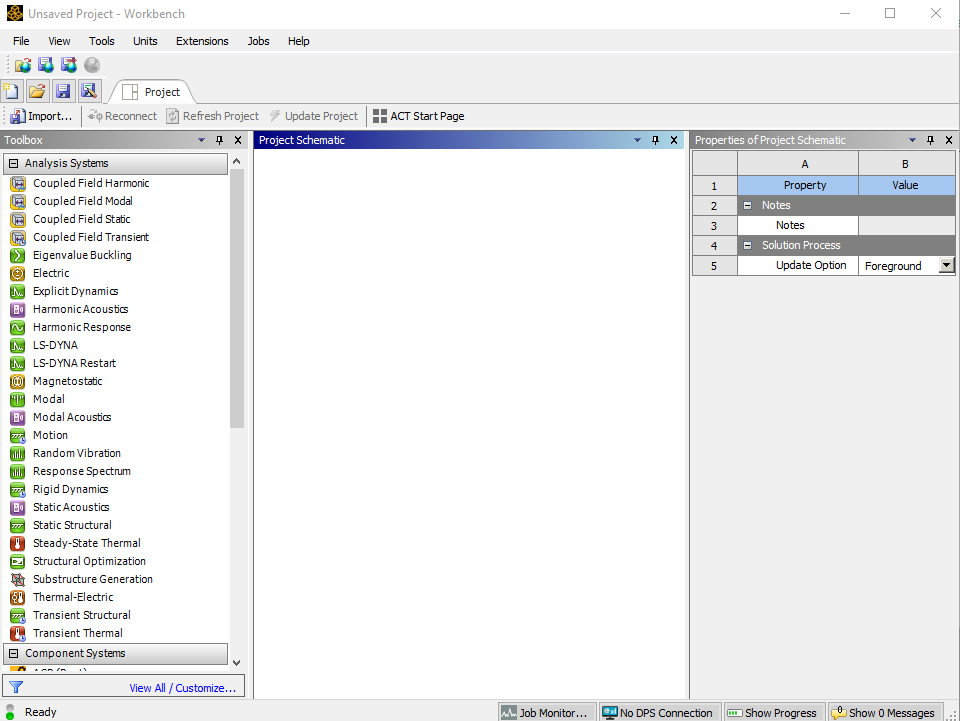
If you did everything properly, you should be able to find and launch the Workbench app. This is where all of your work in Ansys starts. You should have a full list of "systems" on the left, and a blank workspace in the middle. If you have a short list of ~10 things on the left, then something is wrong. Verify you are on university wifi or the VPN and try launching it again.
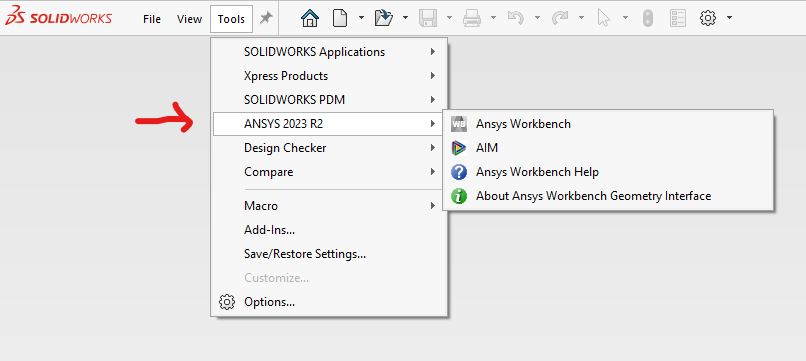
The other thing to check is in Solidworks, where you should now see your Ansys version under the tools dropdown at the top. This means you can import models and assemblies directly into whatever system you want in Ansys.